How to Create Professional Sequential Text Animations in Canva (Step-by-Step Guide)
Caro Builes
2/13/20263 min read
If you want to create clean, professional text animations in Canva without looking amateur or over-animated, this guide will show you how to structure sequential motion the right way.
Sequential text animation is one of the most effective ways to:
Present brand messaging
Introduce services
Create structured reels
Build authority in social media videos
Improve storytelling rhythm
In this tutorial, you’ll learn how to animate text step by step using Canva’s timeline for a polished and professional result.
What Is Sequential Text Animation?
Sequential animation means that elements appear in a controlled order instead of all at once.
This technique helps:
Guide the viewer’s attention
Improve message clarity
Create rhythm
Make videos feel intentional
It’s widely used in brand videos, corporate reels, and marketing presentations.
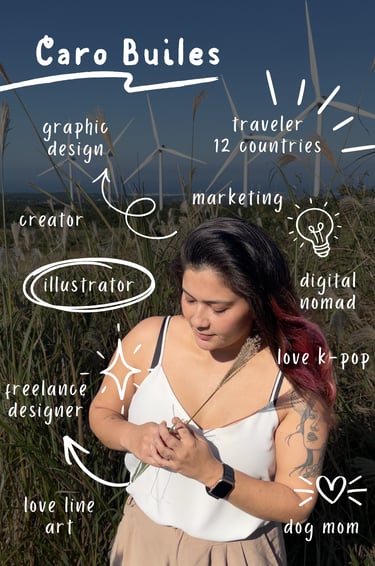
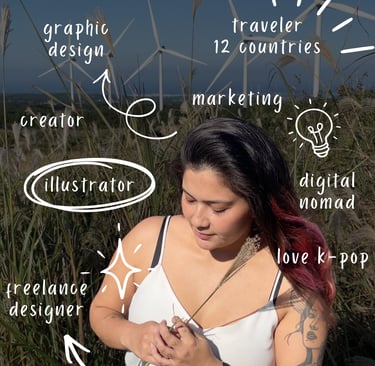
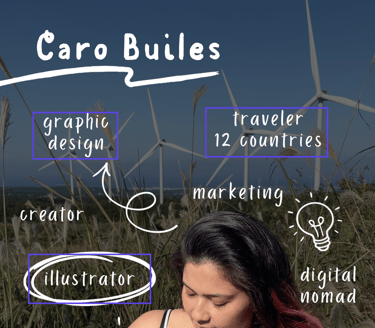
Step 1: Design a Static Layout First (Before Animating)
Before adding any animation, create a static version of your design.
This step is crucial.
Design a single image that clearly shows:
The full text hierarchy
The position of each phrase
The visual balance of the composition
Why?
Because animation should enhance structure — not fix it.
By designing a still layout first, you:
Gain clarity on the order in which words will appear
Ensure proper alignment and spacing
Avoid chaotic timing later
Confirm that the design works even without motion
If it looks strong as a static image, it will look strong animated.
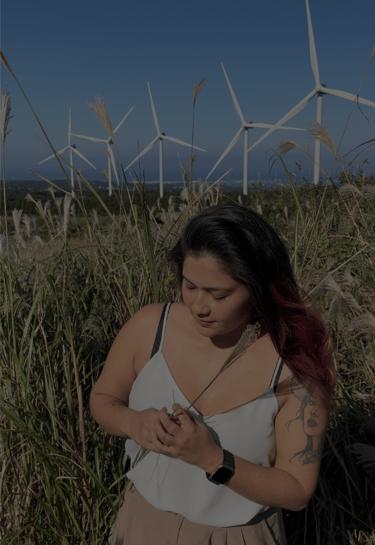
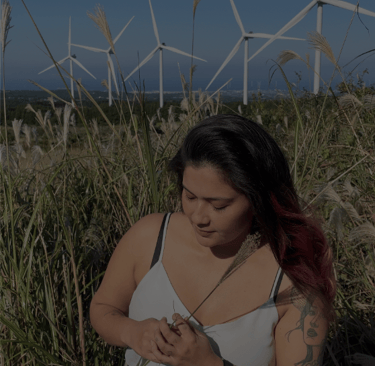
Step 2: Keep the Background Fixed
Your background should remain static throughout the entire animation.
The background:
Determines the total duration of the video
Provides visual stability
Prevents distraction
In Canva, the background layer controls the timeline length.
All animated elements will sit on top of it.
Avoid animating the background in professional brand content unless there is a clear strategic reason.
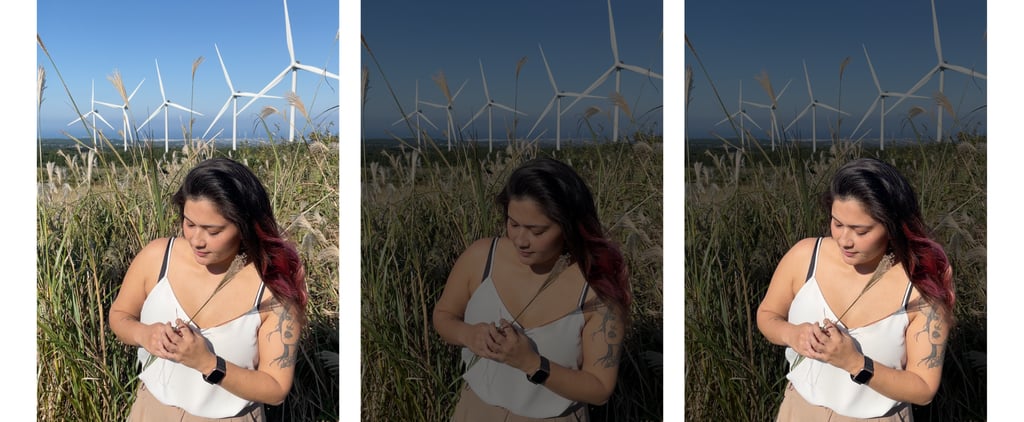
Step 3: Improve Contrast Using an Overlay Layer
One of the most common mistakes in Canva videos is poor text contrast.
If your background photo is bright or busy, your text will lose impact.
To fix this: Add a rectangle shape covering the entire canvas.
Change its color to black or a dark tone.
Reduce opacity (around 30–50%).
Place it above the background but below the text.
This creates a subtle dark overlay that:
Improves readability
Makes the text stand out
Adds visual depth
Creates a more cinematic look
Professional motion design depends heavily on contrast.
Step 4: Isolate the Main Subject for Visual Focus
To keep the subject vibrant while darkening the background:
Duplicate your original photo.
Use “Edit Image” → Background Remover.
Place the cutout above the dark overlay layer.
Now you have:
Darkened background
Clear readable text
Main subject in original color
This technique creates depth and hierarchy:
Background → Overlay → Subject → Text
It immediately elevates the design from basic to professional.
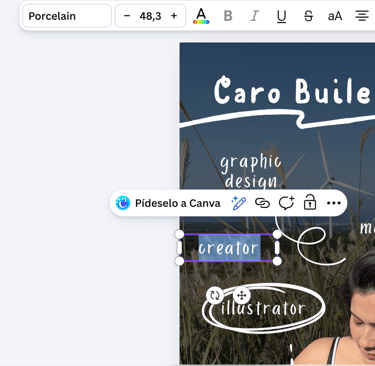
Step 5: Add Text Blocks Separately
Instead of placing all text inside one box, create separate layers for:
Headline
Subheadline
Supporting phrases
Key descriptors
This gives you full timing control.
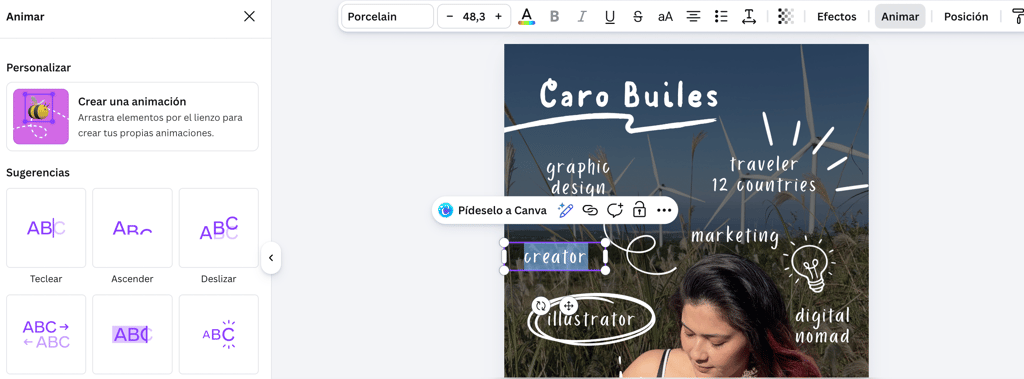
Step 6: Apply Subtle Entrance Animations
Select each text block.
Go to:
Animate → Choose subtle motion like:
Fade
Rise
Slide
Typewriter (in moderation)
Avoid overly playful or exaggerated effects for professional branding.
Controlled motion equals authority.
Step 7: Use the Timeline to Create Sequence
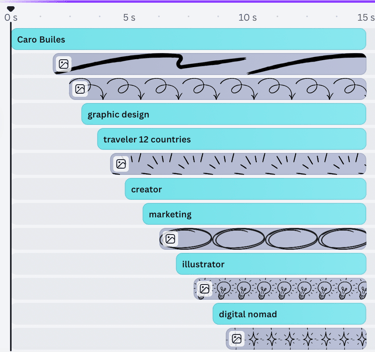
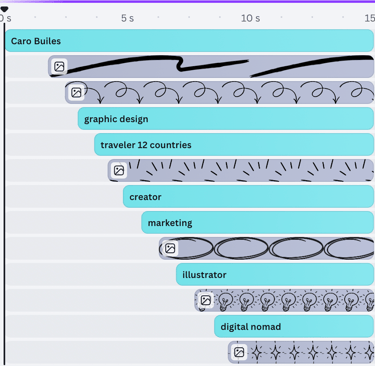
Open Timeline view.
Now:
Place the first text at 0 seconds.
Drag the second text to appear at 1 second.
Drag the third at 2 seconds.
Continue in consistent intervals.
Keep spacing consistent.
This creates rhythm, clarity, and narrative flow.
Why This Structure Matters
Professional animation is not about effects.
It’s about:
Hierarchy
Contrast
Stability
Intentional pacing
When structured correctly, even simple Canva animations look refined and strategic.
Final Thoughts
Canva is not just a beginner tool.
When used strategically, it becomes a powerful branding instrument.
The difference is not the software.
It’s how you design before you animate.
Need Help Creating a Structured Brand Content?
If you want professionally structured animated content for your brand — with clear hierarchy, contrast, and sequencing — I offer social media design services tailored for business visibility and brand positioning.